Working with Stored Sessions
-
When you have completed a profiling session, you can select to save the session for future analysis or comparison.
Saving a Session
-
The save session button is enabled when you have stopped the profiler.

-
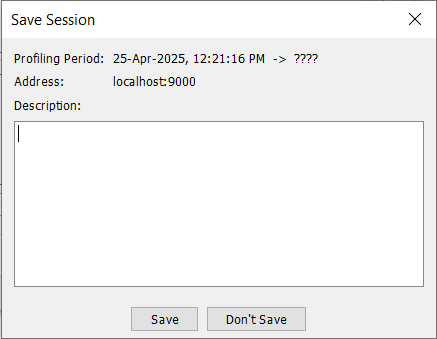
When clicking this button a dialog appears where you can type in a description that describes what you have been done in the profiling session. This dialog looks like the example below.
-
All saved sessions are stored inside the folder ~/.technia/profiler/<session-id>. Where the session-id is a unique number. Within this folder, a number of files are stored.
Open a Saved Session
-
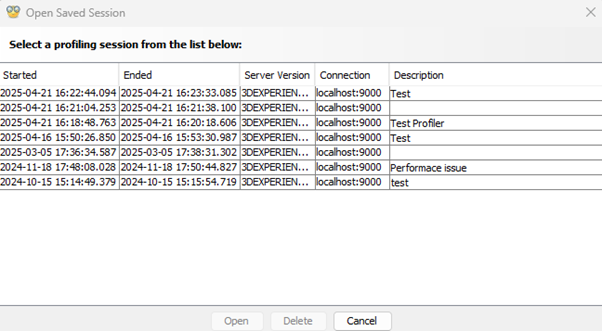
To open a previously recorded session, go into the "File" menu located in the main- screen and select the "Open" menu item. This will bring up a dialog showing all saved sessions.
-
From this dialog, you can select a session to be opened and you are also able to delete a particular session.
-
To open a session, either select one and click the Open button or double click on the session to be opened.
-
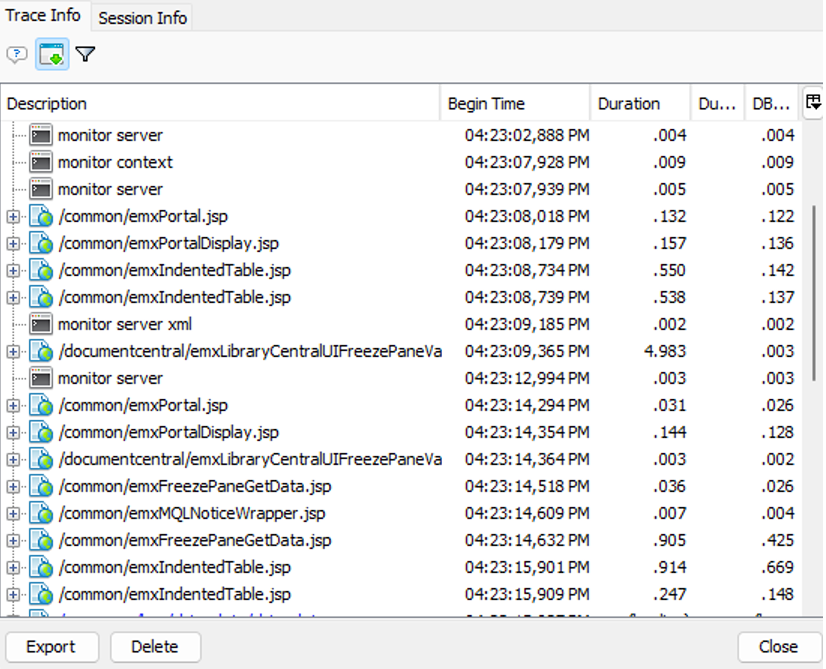
When a stored session is opened, it will be shown in a separate window. This window has a similar look as the main screen but there are some exceptions.
-
E.g. you will only be able to see the tab showing the trace node information and a tab showing information about the profiling session. The timeline and overview tabs are not available in this view.
Export a Session
-
It is possible to export the data in a stored session. Currently, the only supported format is DOCX (Microsoft Word 2007+). Future versions of the profiler will have some other export formats, for example XML.
-
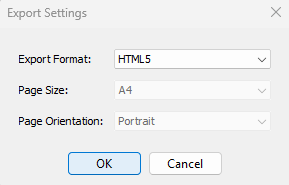
Clicking the Export button gives a dialog from where you can specify the format and some other formatting instructions.
-
-
Once clicking the OK button, the export is created, and the Profiler client will try to open up the generated file with Microsoft Word.