Graphic Reporting - Administration Guide : Dashboard
30 March 2016
Table of Contents
1. Configuring the Dashboard
Dashboards consist of gadgets. There are different types of gadgets, each having their own configuration settings, as well as some standard settings that apply for all gadget types.
1.1. Commands
This section describes how to create a Command to launch a dashboard.
Commands can be created and modified with the Business Administrator and MQL thick clients; however, it is recommended that you use the Business Administrator if you are not familiar with MQL (Matrix Query Language).
The most important parameter when creating a Command to launch the dashboard is the "config" parameter, whose value must follow the standard syntax of a TVC XML resource.
${ROOT_DIR}/tvc-action/dashboard?config=tvc:dashboard/MyDashboard.xml
Or, if using an XML to define the command:
<Command>
    <Label>Dashboard</Label>
    <URL action="dashboard">
        <Param name="config" value="tvc:dashboard/MyDashboard.xml" />
    </URL>
</Command>
1.2. Configuration
The dashboard definition is stored in a directory called "dashboard" among the XML resources (somewhere under /WEB-INF/tvc in your application directory).
If you omit the domain in the resource name, the location of the dashboard definition is:
/WEB-INF/tvc/dashboard
If the dashboard definition is stored in a domain, for example acme (tvc:dashboard:acme/MyDashboard.xml) then the resource location is:
/WEB-INF/tvc/acme/dashboard
If you omit the domain in the gadget reference (see the Import element in 4.2.2.3) resource name, the location of the dashboard definition is:
/WEB-INF/tvc/gadgets
If the gadgets reference definition is stored in a domain, for example acme (tvc:gadgets:acme/MyGadgets.xml) then the resource location is:
/WEB-INF/tvc/acme/gadgets
Please look into this document for more details regarding XML configuration files and format.
1.2.1. Configuration hierarchy
The dashboard definition contains the following main areas:
- Title
-
Defines the breadcrumb value)
- Layout
-
Defines the layout of the dashboard, how many columns, and their span
- Library
-
Defines all the gadgets that should be available on the dashboard
- DefaultView
-
Defines the default view when the user has not yet personalized the dashboard. This means which gadgets are visible, in which column, and their size
1.2.2. Dashboard configuration
The dashboard is defined in XML. The root element must be <Dashboard>.
Below you find child element definitions.
Child Elements Dashboard
| Element Name | Description | Example |
|---|---|---|
Title |
Defines the breadcrumb value. Macros @{value} & @{count} are available to display the text and quantity of the drilled down section. |
|
Layout |
Contains the layout of the dashboard in the form of Column elements. |
|
Library |
Contains all the gadget definitions that should be available on the dashboard. |
|
DefaultView (Optional) |
Contains the definition of the default layout of the dashboard. Sets up which gadgets are added by default, where, and their size. This is optional. |
|
Filters |
Contains definitions of the available filters (filtering unavailable if missing) |
|
Loader |
The loader element enables one shared loader among several gadgets to retrieve the business objects or connections to base the gadgets for. Supported loader types are:
Note that you can still override the dashboard loader element with specific gadget loaders. |
Or
Or
Or
Or
Or
|
Child Elements Layout
A dashboard is built up using columns. When defining the layout of the dashboard, columns need to be added and have their weight set. The weight attribute defines how many columns the gadget should span.
| Element Name | Description | Example |
|---|---|---|
Column |
Sets the title of the dashboard |
<Column weight="1" /> |
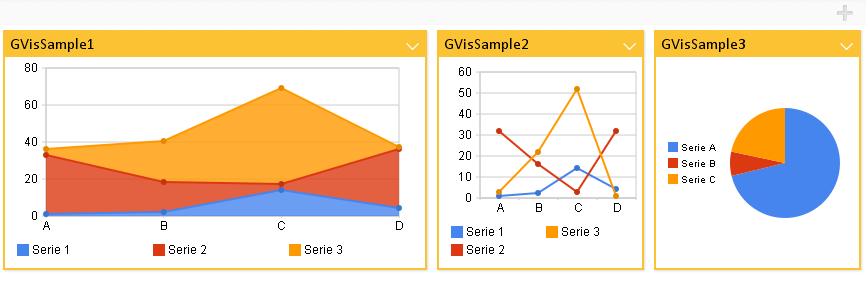
Defining the layout of a dashboard containing 3 columns where the first column takes up half the space would for example look like this:
<Layout>
    <Column weight="2" />
    <Column weight="1" />
    <Column weight="1" />
</Layout>
And the result:
Child Elements Library
The library is where all the gadgets are defined. These will be available to be added to the dashboard by the user, or added by default as setup in the DefaultView section of the configuration.
| Element Name | Description | Example |
|---|---|---|
Table |
Contains a table gadget definition. |
|
Chart |
Contains a chart gadget definition. |
|
Frame |
Contains a frame gadget definition |
|
HTML |
Contains an html gadget definition |
|
Import |
Points out a referenced gadgets definition for reuse purposes |
|
Each gadget has some settings that apply only for the specific gadget, but there are some common settings used for all gadgets:
| Setting Name | Description | Example |
|---|---|---|
Label |
Defines the label of the gadget |
|
Description |
Defines the description of the gadget. |
|
Color |
Defines the default color of the container of the gadget. This can be changed by the user for specific instances of the gadget. Gray is the default color. |
Possible Values:
Example:
|
Height |
Defines the height of the gadget in pixels. 250 is the default height. |
|
Image |
Defines the image to use when displaying the gadget in the library. |
Possible values:
Example:
|
Child Elements Table
The table element defines a table gadget. A table gadget displays a TVC Structure Browser table.
| Setting Name | Description | Example | ||
|---|---|---|---|---|
Action |
Defines the name of a tvc-action to be used when loading a table. |
<Action>execInquiryToTable</Action> |
||
PageConfig |
Defines a TVC Page configuration to be used. See this document for more information. |
|
||
Loader |
If defined, adds the request parameter "loader" with the value specified.
To use a loader, the action must be one of:
|
|
||
Inquiry |
If defined, adds the request parameter "inquiry" with the value specified. Note: This request parameter might not be used, depending on what action you load. To use a loader, the action must be one of:
|
|
Example:
<Table id="mytablegadget">
    <Label>My Table Gadget</Label>
    <Description>This is my table gadget</Description>
    <Color>Red</Color>
    <Height>500</Height>
    <Action>execCustomLoaderToTable</Action>
    <Loader>dataset:tvc:dataset/MyLoader.xml</Loader>
    <PageConfig>tvc:pageconfig:/MyPage.xml</PageConfig>
</Table>
Child Elements Chart
The chart element defines a chart gadget. This gadget displays charts.
| Element Name | Description | Example |
|---|---|---|
ChartConfig |
Defines a TVC Chart configuration. This can be used to display tvc charts. See this document for more information. |
|
DataProvider |
Defines a data provider. Data providers can create other types of charts than default tvc charts. Pointing to different ones will render different charts. Possible values can be either a custom java class, or a preconfigured chart provider. Please see this chapter for information on the pre-configured chart providers. |
Or
|
Inquiry |
Defines a TVC Inquiry to retrieve the business objects or connections to generate the chart for. |
<Inquiry>tvc:inquiry/MyObjects.xml</Inquiry> |
Expression |
Defines a select expression used to generate the sections of the chart. Multiple expressions can be defined to support multilinedate and multiline charts Label attribute can be used to define labels for each expression. |
|
SumExpression |
Defines a select expression used to sum the values of each section. If not defined the logic will sum the object count. |
|
ValueHandler |
Implement custom logic for section values and count. Please see this chapter for information on Value Handlers. |
|
AlternateOIDExpression |
This setting defines the object id’s to load into a chart based on a select expression over the contextual object ids. This is equal to defining a select loader. |
|
OIDExpression |
This setting is used to control which object ID to use on drill down |
|
Loader |
Defines the loader to retrieve the business objects or connections to generate the chart for. Supported loader types are:
|
Or
Or
Or
Or
Or
|
SortByComparator |
Defines a com.technia.tvc.core.chart.Value java.util.Comparator to sort the values in a chart |
|
SortByValueMapping |
Defines the sort order of values |
|
SortByValueCount |
Defines if to sort the values raising or falling by count |
Or
|
Dashboard |
Defines the dashboard configuration to use when a section in a chart is clicked and a "drill-down" is performed (Not supported by gvis) |
|
GroupOther |
Group the least frequent values as "Other" by defining the number of values to be displayed before grouping Set default count by init-param
|
|
Top |
Remove the least frequent values by defining the number of values to be displayed Set default count by init-param |
|
Example:
<Chart id="mychartgadget">
    <Label>My chart gadget</Label>
    <Description> This is my chart gadget</Description>
    <Color>Grey</Color>
    <Height>250</Height>
    <Image>@PieChart</Image>
    <DataProvider>com.technia.tvc.graphicreporting.dashboard.provider.GenericPieProvider</DataProvider>
    <Inquiry>tvc:inquiry:tvx:dashboard/MyOpenIssues.xml</Inquiry>
    <Expression>attribute[Priority]</Expression>
    <Dashboard>tvc:dashboard:tvx:dashboard/IssuesByPriority.xml</Dashboard>
</Chart>
Child Elements Frame
A frame gadget can be used to contain any URL specified. This is a very generic gadget, and not all URL’s might be suitable to put in a gadget, so it should be used with caution.
| Element Name | Description | Example |
|---|---|---|
URL |
Defines the URL to populate the gadget. Needs attribute "action" or "href" to specify the url. |
Or
|
Param |
The Param element can be used inside the URL to define parameters to the URL |
|
Example showing the tvc collections page in a gadget:
<Frame id="collections">
    <Label>Collections</Label>
    <Description>My Collections</Description>
    <Color>blue</Color>
    <Height>500</Height>
    <Image>@Table</Image>
    <URL action="showCollections">
        <Param name="portalMode">true</Param>
    </URL>
</Frame>
Child Element DefaultView
The default view is an optional element that can be used to define a default layout of a dashboard. When a user first launches a dashboard, the gadgets and their location defined in this will be the active view. Users can then personalize the view by adding, removing, moving or resizing gadgets.
| Element Name | Description | Example |
|---|---|---|
Column |
The column element defines a column in the default view. The column can contain Gadget elements, or be empty |
Or |
Gadget |
The Gadget element defines the gadget to add to the column in the default view. The attribute "def" should contain the gadget id. The attribute "span" defines the number of columns that the gadget should fill up. |
|
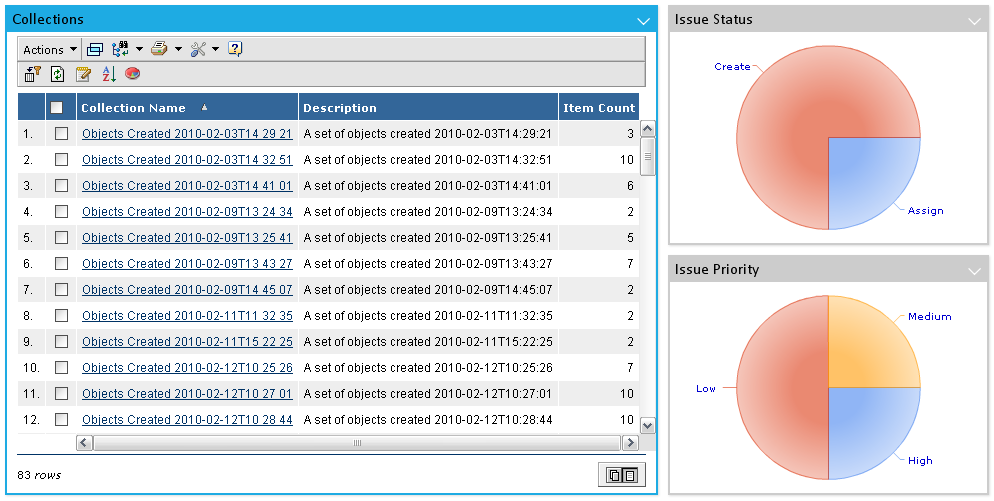
Example:
<DefaultView>
    <Column>
        <Gadget ref="collections" span="2" />
    </Column>
    <Column/>
    <Column>
        <Gadget ref="my-open-issues-status-pie" span="1" />
        <Gadget ref="my-open-issues-priority-pie" span="1" />
    </Column>
</DefaultView>
This will make the collections gadget span 2 columns, nothing in the middle column, and put 2 chart gadgets in the last column:
Child Element Filters
| Element Name | Description | Example |
|---|---|---|
Filter |
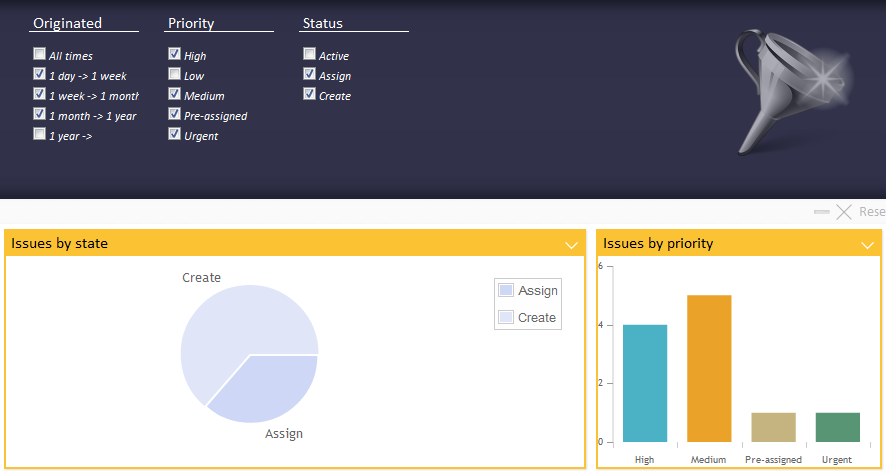
The filter element defines a filter group to be applied to the dashboard data. The filter must contain a label and an expression or a handler definition. |
Or |
Label |
Defines the header of the filterable values. Strings or resource keys are supported. |
OR
|
Expression |
Defines the expression to be used for dividing the data into filterable groups. |
OR
|
Handler |
Defines a filter handler to be used for full control of the filterable data groups. See chapter *4.2.5* for more details on filter handler implementation. |
|
Default |
Defines what filter options to be initially selected. Use either Include or Exclude elements to define the select value defaults. |
OR |
1.2.3. Chart Providers
There are three categories of providers that can be used, along with the available configuration options. They represent three different chart frameworks. Providers whose names end with "ofc" are "Open Flash" charts. Providers whose names end with "gvis" are "Google Visualization" charts. Providers whose names end with "jqplot" are "jqPlot" charts.
All providers use the inquiry and expression elements to retrieve the data.
Open Flash Chart Providers
All providers that end with "ofc" are "Open Flash" charts. These charts require the Adobe Flash Player to be installed in the browser.
Available Open Flash Chart providers
| Provider Name | Description/Configuration options | Example |
|---|---|---|
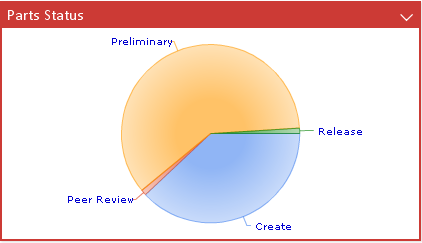
pie-ofc |
Open Flash pie chart. |
|
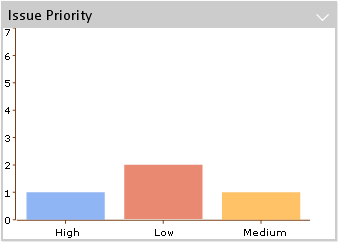
bar-ofc |
Open Flash bar chart. |
|
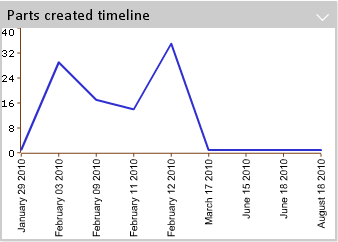
line-ofc |
Open Flash line chart. |
|
Common Open Flash Chart settings
These are the settings that works for all the different Open Flash providers
| Element Name | Description | Example |
|---|---|---|
RotateLegend |
Define if legends should be rotated. Default is false |
|
YAxisSteps |
Specify detail of Y axis values. The highest value of Y will be divided with this value to determine the steps between each value shown: |
|
DateFormat |
If the expression for the chart returns a date value, the x axis can be configured to show the date on a given format. This will also determine how detailed the data is: |
|
ColorMappings |
Define custom colors to be used for specific chart values. Each mapping is separated with a pipe "|" |
|
ColorMappingsExpressions |
Defines expressions to be used for setting custom colors to chart values. Each mapping is separated with a pipe "|" |
|
Colors |
Overrides the default color series |
|
Open Flash Pie Chart Settings
These are the extra settings that can be used for Open Flash Pie Charts
| Element Name | Description | Example |
|---|---|---|
Fade |
Enable/Disable the fade animation. |
|
Bounce |
Enable/Disable the bounce animation. |
|
GradientFill |
Enable/Disable gradient |
|
Google Visualization Chart Providers
All providers that end with "gvis" are "Google Visualization" charts. These chart types does not require any browser plugin.
Available Google Visualization Chart providers
| Provider Name | Description/Configuration options | Example | ||
|---|---|---|---|---|
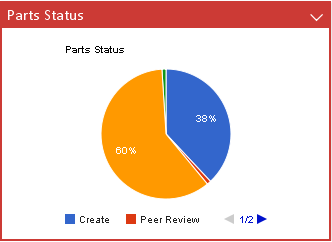
pie-gvis |
Google Visualization pie chart. |
|
||
bar-gvis |
Google Visualization bar chart. |
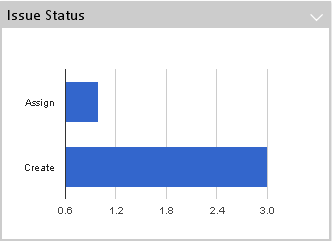
|
||
column-gvis |
Google Visualization column chart. |
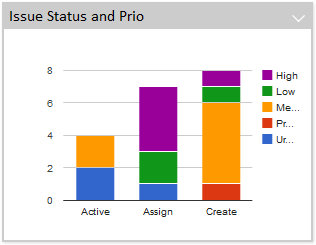
|
||
line-gvis |
Google Visualization line chart. |
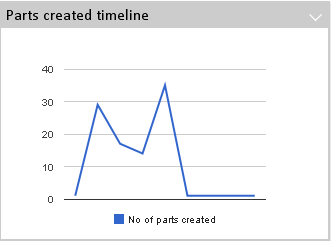
|
||
map-gvis |
Google Visualization maps.
|
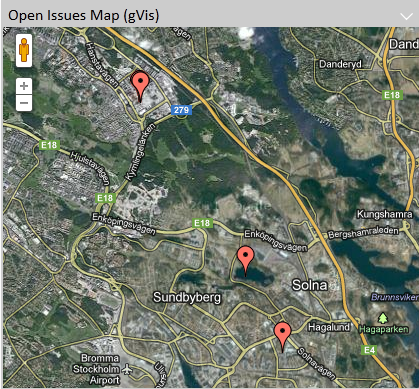
|
Google Visualization Column Chart Settings
These are the extra settings that can be used for Google Visualization Column Charts
| Element Name | Description | Example |
|---|---|---|
AdditionalExpression |
The additional expression will divide a column into a stack or group of columns |
|
AdditionalReturnExpression |
The return expression is used if the return of the additional expression differs |
|
isStacked |
To control the stacked or grouped behavior use the GVis option "isStacked" (true is default) |
|
Google Visualization Line Chart Settings
These are the extra settings that can be used for Google Visualization Line Charts
| Element Name | Description | Example |
|---|---|---|
Legend |
Specifies the legend to be used. |
|
Google Visualization Map Settings
These are the extra settings that can be used for Google Visualization Line Charts
| Element Name | Description | Example |
|---|---|---|
MarkerContent |
Specifies the content of the marker tooltip. A marker is the pin being shown in a map where an object was created or modified. This content can contain macros and basic HTML. |
|
Google Visualization Extra Settings
The Google Visualization charts can be further configured using options documented for each chart type here:
- pie-gvis
-
http://code.google.com/apis/visualization/documentation/gallery/piechart.html
- bar-gvis
-
http://code.google.com/apis/visualization/documentation/gallery/barchart.html
- column-gvis
-
http://code.google.com/apis/visualization/documentation/gallery/columnchart.html
- line-gvis
-
http://code.google.com/apis/visualization/documentation/gallery/linechart.html
- map-gvis
-
http://code.google.com/apis/visualization/documentation/gallery/map.html
To use these options, add the element "GVisOptions" to the configuration. Separate multiple options using the "|" character. For example:
<Chart id='my-parts-status-pie-gvis'>
    <Label>Parts Status</Label>
    <Description>Part Status Pie Chart</Description>
    <Color>red</Color>
    <Height>250</Height>
    <Image>@PieChart</Image>
    <DataProvider>pie-gvis</DataProvider>
    <GVisOptions>legend=bottom|title=Part Status|pieSliceText=percentage|is3D=false</GVisOptions>
    <Inquiry>tvc:inquiry:tvx:dashboard/MyParts.xml</Inquiry>
    <Expression>current</Expression>
</Chart>
jqPlot Chart providers
All providers that end with "jqplot" are "jqPlot" charts. These chart types does not require any browser plugin.
Available jqPlot Chart providers
| Provider Name | Description/Configuration options | Example |
|---|---|---|
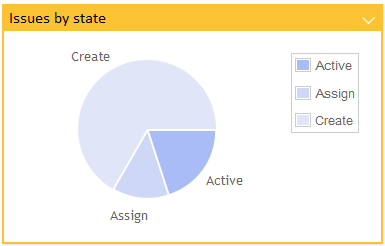
pie-jqplot |
jqPlot pie chart |
|
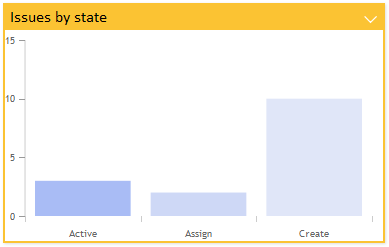
bar-jqplot |
jqPlot bar chart |
|
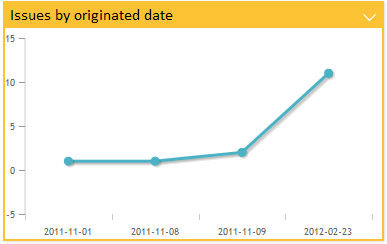
line-jqplot |
jqPlot line chart |
|
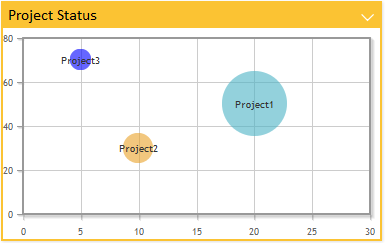
bubble-jqplot |
jqPlot bubble chart This chart requires two extra expressions to get values for "x" and "y" axis. For examples check bubble chart settings. |
|
stackbar-jqplot |
jqPlot stack bar chart |
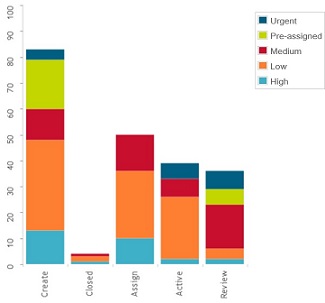
|
donut-jqplot |
jqPlot donut chart |

|
date-jqplot |
jqPlot date chart. This chart requires expression to evaluate into a date or timestamp. Enovia date format is supported |
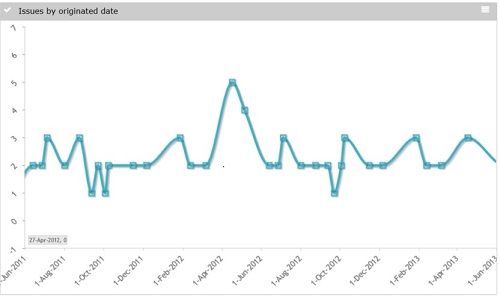
|
multilinedate-jqplot |
jqPlot multiline date chart. This chart requires expression to evaluate into a date or timestamp. Enovia date format is supported. |
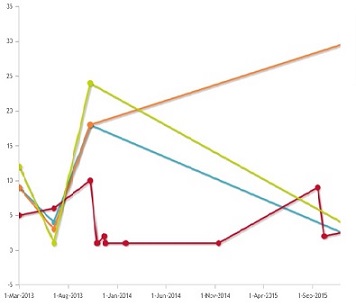
|
multiline-jqplot |
jqPlot multiline chart |
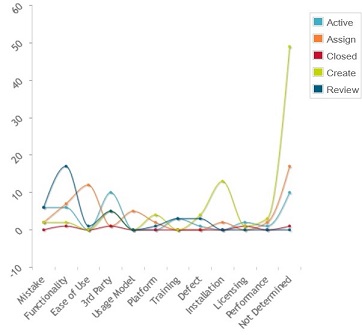
|
Common jqPlot Chart settings
These are the settings that works for all the different jqPlot providers
| Element Name | Description | Example |
|---|---|---|
Options |
Control the options map. Note that settings specified in the options element are added to the default options for the chart type. This makes it possible to override specific options without having to control all of them in your configuration. See http://www.jqplot.com/ for more details on available options. |
|
Resources |
Include jQPlot resources. Available values:
Defaults:
|
|
ColorMappings |
Define custom colors to be used for specific chart values. Each mapping is separated with a pipe "|" |
|
ColorMappingsExpressions |
Defines expressions to be used for setting custom colors to chart values. Each mapping is separated with a pipe "|" |
|
Colors |
Overrides the default color series |
|
ShowGrid |
Set to true if chart should have a "grid" as background. Default is false. |
|
Expression |
Defines a select expression used to generate the sections of the chart. Multiple expressions can be defined to support multilinedate and multiline charts Label attribute can be used to define labels for each expression. |
|
SeriesExpression |
Defines a select expression used in multi dimensional chart to generate series or stack within the chart. |
|
SeriesTop |
Defines number of series to be displayed after which less frequent series will be removed. |
|
SeriesGroup |
Defines number of series to be displayed before least frequent values are grouped as "Other". |
|
jqPlot Bar Chart Settings
These are the extra settings that can be used for jqPlot Pie Charts
| Element Name | Description | Example |
|---|---|---|
RotateLegend |
Define if legends should be rotated. Default is false |
|
RotateLegendAngle |
Set what angle to use when enabling "RotateLegend" |
|
BarDirection |
Defines the orientation of bar direction. Valid values are horizontal and vertical, default value is vertical |
|
jqPlot Line Chart Settings
These are the extra settings that can be used for jqPlot Line Charts
| Element Name | Description | Example |
|---|---|---|
RotateLegend |
Define if legends should be rotated. Default is false |
|
RotateLegendAngle |
Set what angle to use when enabling "RotateLegend" |
|
EnableZoom |
Enables the user to zoom parts of a chart. Default is false. |
|
jqPlot Bubble Chart Settings
| Element Name | Description | Example |
|---|---|---|
BubbleXExpression |
Expression for getting "x" axis data values. |
|
BubbleYExpression |
Expression for getting "y" axis data values. |
|
1.2.4. Value Handler
Value handlers are used to implement custom chart section values and counts. The value handler tells what to select, if it should be selected from business objects or connections and how to use the selected data to populate a value and a count.
Example listing the amount of related objects by current state:
public class QtyByType implements ValueHandler {
    private static final SymbolicName ATTR_QTY =
        new SymbolicName("attribute_Quantity");

    private static final Statement QTY =
        new StatementBuilder().attribute(ATTR_QTY).toStatement();

    private static final Statement TO_CURRENT =
        new StatementBuilder().to().current().toStatement();

    private static final Statement TO_ID =
        new StatementBuilder().to().id().toStatement();

    public void populateValue(Gadget gadget,
                              DashboardContext context,
                              ValueMap values,
                              SelectedData selectedData) {
        BigDecimal count = null;
        if (!StringUtils.isOnlyWhitespaceOrEmpty(selectedData.getSelectValue(QTY))) {
            count = new BigDecimal(selectedData.getSelectValue(QTY));
        }
        values.add(new TextValue(selectedData.getSelectValue(TO_CURRENT.getStatement())),
                selectedData.getSelectValue(TO_ID), count);
    }
    public Collection<String> selects(Gadget gadget) {
        return Arrays.asList(new String[]
            { TO_ID.getStatement(), TO_CURRENT.getStatement(), QTY.getStatement() });
    }
    public boolean isBusinessObjectSelect(Gadget gadget) {
        return false;
    }
}
1.2.5. Filter Handler
Filter handlers are used to define custom filtering logic. You could use it to group several values into one filter, make one value be part of several filter alternatives, custom data group labels or to control sorting of the filters.
To sort the filters implement the Comparator interface.
Example grouping on originated date grouped by
-
All times
-
→ Hour
-
1 hour → 1 day
-
1 day → 1 week
-
etc
public class FilterHandlerExample implements FilterHandler, Comparator<SelectValue> {
    private static final long MINUTE = 1000 * 60;
    private static final long HOUR = MINUTE * 60;
    private static final long DAY = HOUR * 24;
    private static final long WEEK = DAY * 7;
    private static final long MONTH = DAY * 30;
    private static final long YEAR = DAY * 365;
    private static final String MORE_THAN_YEAR = "1 year ->";
    private static final String LAST_MONTH_TO_YEAR = "1 month -> 1 year";
    private static final String LAST_WEEK_TO_MONTH = "1 week -> 1 month";
    private static final String LAST_DAY_TO_WEEK = "1 day -> 1 week";
    private static final String LAST_HOUR_TO_DAY = "1 hour -> 1 day";
    private static final String LAST_HOUR = "-> 1 hour";
    private static final String ALL_TIMES = "All times";
    private static final Collection<String> SELS = Arrays.asList(new String[]
        { Statement.ORIGINATED.getStatement() });
    private static final Map<String, Integer> SORT_ORDER = new HashMap<String, Integer>();

    static {
        SORT_ORDER.put(ALL_TIMES, 0);
        SORT_ORDER.put(LAST_HOUR, 1);
        SORT_ORDER.put(LAST_HOUR_TO_DAY, 2);
        SORT_ORDER.put(LAST_DAY_TO_WEEK, 3);
        SORT_ORDER.put(LAST_WEEK_TO_MONTH, 4);
        SORT_ORDER.put(LAST_MONTH_TO_YEAR, 5);
        SORT_ORDER.put(MORE_THAN_YEAR, 6);
    }

    public Collection<String> selects() {
        return SELS;
    }

    public Collection<String> filterAs(SelectedData selectedData, Locale locale) {
        List<String> filterAs = new ArrayList<String>();
        Date d = DateUtils.parse(selectedData.getSelectValue(Statement.ORIGINATED.getStatement()));
        long current = System.currentTimeMillis();
        long delta = current - d.getTime();
        if (delta <= HOUR) {
            filterAs.add(LAST_HOUR);
        } else if (delta <= DAY) {
            filterAs.add(LAST_HOUR_TO_DAY);
        } else if (DAY < delta && delta <= WEEK) {
            filterAs.add(LAST_DAY_TO_WEEK);
        } else if (WEEK < delta && delta <= MONTH) {
            filterAs.add(LAST_WEEK_TO_MONTH);
        } else if (MONTH < delta && delta <= YEAR) {
            filterAs.add(LAST_MONTH_TO_YEAR);
        } else if (YEAR < delta) {
            filterAs.add(MORE_THAN_YEAR);
        }
        // A value could be part of multiple filter alternatives
        filterAs.add(ALL_TIMES);
        return filterAs;
    }
    public int compare(SelectValue o1, SelectValue o2) {
        return SORT_ORDER.get(o1.getSelectValue()) - SORT_ORDER.get(o2.getSelectValue());
    }
}
1.2.6. Enovia tables in dashboard
To enable listing of contextual objects at drill down in gadgets when TVC Structure Browser is not available ENOVIA OOTB tables are supported by configuration.
| Type | Name | Description | ||
|---|---|---|---|---|
Action |
dashboardListOOTB |
The TVC action to call for populating contextual drill down data into an ootb table |
||
Parameter |
table |
The table name to base the table on.
|
Example configuration:
<Frame id='issues-list-ootb'>
    <Label>Issues List OOTB</Label>
    <Description>Displays a list with all context issues.</Description>
    <Color>red</Color>
    <Height>500</Height>
    <Image>@Table</Image>
    <URL action="dashboardListOOTB">
    <Param name="table">IssueList</Param>
    </URL>
</Frame>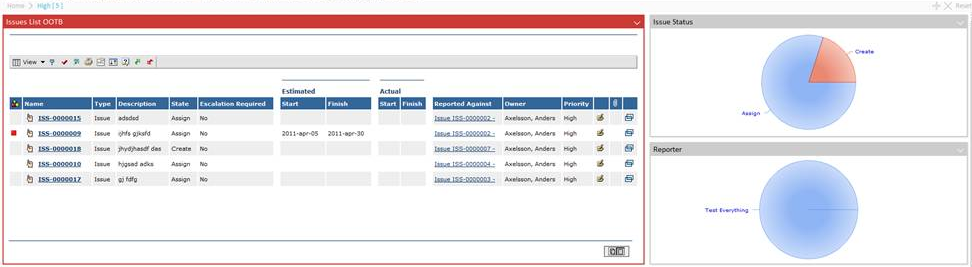
1.2.7. Multi Dimensional Chart
Multi dimensional chart can be implemented using SeriesExpression or multiple Expressions. When SeriesExpression is used, chart data elements are segregated into multiple series based on value of SeriesExpression, when multiple Expression are used each expression represents a series.
Example Configuration:
Using mutiple Expression
<Chart id="jqplot-issues-by-originated-line">
        <Label>Issues by State dates</Label>
        <Color>gray</Color>
        <Height>500</Height>
        <Image>@LineChart</Image>
        <DataProvider>multilinedate-jqplot</DataProvider>
        <Expression label="tvc.graphicreporting.dashboard.issue.create">state[Create].start</Expression>
        <Expression label="tvc.graphicreporting.dashboard.issue.review">state[Review].start</Expression>
        <Expression label="tvc.graphicreporting.dashboard.issue.active">state[Active].start</Expression>
        <Expression label="tvc.graphicreporting.dashboard.issue.assign">state[Assign].start</Expression>
        <RotateLegendAngle>-45</RotateLegendAngle>
        <EnableZoom>true</EnableZoom>
    </Chart>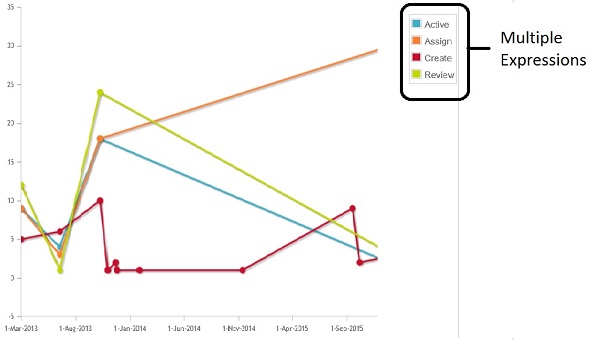
Using Series Expression
    <Chart id="jqplot-issues-by-state-stackbar">
        <Label>Issues by Priority and state</Label>
        <Description>Issues by state displayed in a bar chart</Description>
        <Height>500</Height>
        <Image>@ColumnChart</Image>
        <DataProvider>stackbar-jqplot</DataProvider>
        <Expression>current</Expression>
        <SeriesExpression>attribute[Priority]</SeriesExpression>
        <DisplayTooltip>true</DisplayTooltip>
        <RotateLegend>true</RotateLegend>
    </Chart>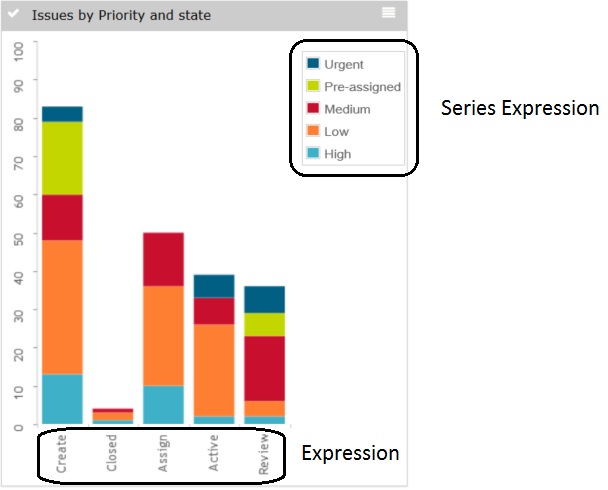
Below table lists down valid series configuration for different multidimensioanl charts
| Chart | Configuration |
|---|---|
StackBar Chart |
SeriesExpression - Series Expression can be used to define stacks in Stack Bar chart. |
MultiLine Chart |
SeriesExpression - Series Expression can be used to segregate data elements into multiple lines, each line represents unique SeriesExpression value. Multiple Expression - Multiple Expression can be defined and each expression will be treated as a series or line. |
MultiLine Date Chart |
SeriesExpression - Series Expression can be used to segregate data elements into multiple lines, each line represents unique SeriesExpression value. Multiple Expression - Multiple Expression can be defined and each expression will be treated as a series or line. Note: Expression should be of type date/timestamp. Supports Enovia date format. |
Multi Value Handler
Like Value handlers, Multi Value handlers are used to implement custom chart section values, series and counts. The multi value handler tells what to select, if it should be selected from business objects or connections and how to use the selected data to populate a value, a sreies and a count.
Example listing the amount of related objects by current state and type:
public class QtyByTypeAndState implements MultiValueHandler {
    private static final SymbolicName ATTR_QTY =
        new SymbolicName("attribute_Quantity");

    private static final Statement QTY =
        new StatementBuilder().attribute(ATTR_QTY).toStatement();

    private static final Statement TO_CURRENT =
        new StatementBuilder().to().current().toStatement();

    private static final Statement TO_TYPE =
        new StatementBuilder().to().type().toStatement();

    private static final Statement TO_ID =
        new StatementBuilder().to().id().toStatement();

    public void populateValue(Gadget gadget,
                              DashboardContext context,
                              MultiValueMap values,
                              SelectedData selectedData) {
        BigDecimal count = null;
        if (!StringUtils.isOnlyWhitespaceOrEmpty(selectedData.getSelectValue(QTY))) {
            count = new BigDecimal(selectedData.getSelectValue(QTY));
        }
        values.add(new TextValue(selectedData.getSelectValue(TO_CURRENT.getStatement())), selectedData.getSelectValue(TO_TYPE.getStatement()),
                selectedData.getSelectValue(TO_ID), count);
    }
    public Collection<String> selects(Gadget gadget) {
        return Arrays.asList(new String[]
            { TO_ID.getStatement(), TO_CURRENT.getStatement(), QTY.getStatement(), TO_TYPE.getStatement() });
    }
    public boolean isBusinessObjectSelect(Gadget gadget) {
        return false;
    }
}
1.3. Drilldowns
Drilldowns can be enabled to display another dashboard based on the objects of a clicked section of a chart or a table in a dashboard. The data in the gadgets of the dashboard drilled down into would be based on the objects of the section in the previously clicked dashboard. Drilldowns could be performed multiple times in a row. To navigate in the structure of drilldowns and to be able to return to a previous dashboard in the hierarchy breadcrumbs are available in the top left corner.
Drill downs are not supported for gvis charts.
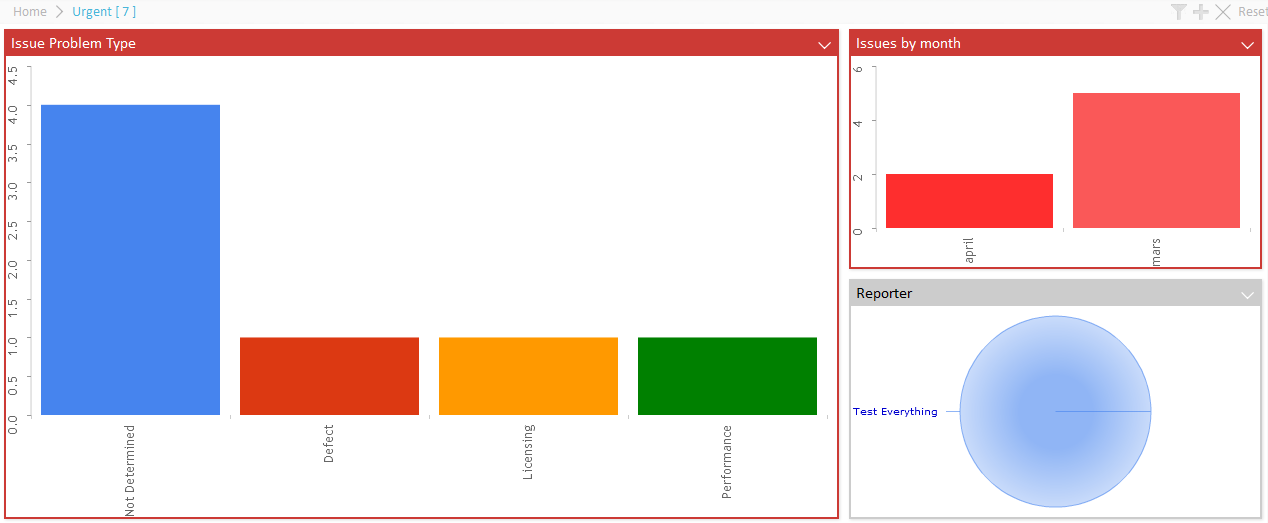
1.3.1. Bread crumb
To enable drilldown navigation breadcrumbs are available to the top left. The breadcrumbs are configurable and macros for the drilled down section text value and quantity exist.
1.3.2. Drilldowns from Charts
To enable drilldown from a chart simply add the Dashboard element defining the dashboard configuration to be used for the drill down.
Dashboard |
Defines the dashboard configuration to use when a section in a chart is clicked and a "drill-down" is performed. |
|
1.3.3. Drill Down from Table Pages
When you load a table in a gadget, you can configure a column to support drill-down. E.g. when clicking on something in the table, you can open a nested dashboard showing some other information.
In the example below, a dashboard has been configured to display issues. Each issue has a column showing the project, which the issue is related to. Clicking the project name brings up another dashboard with information around the clicked project.
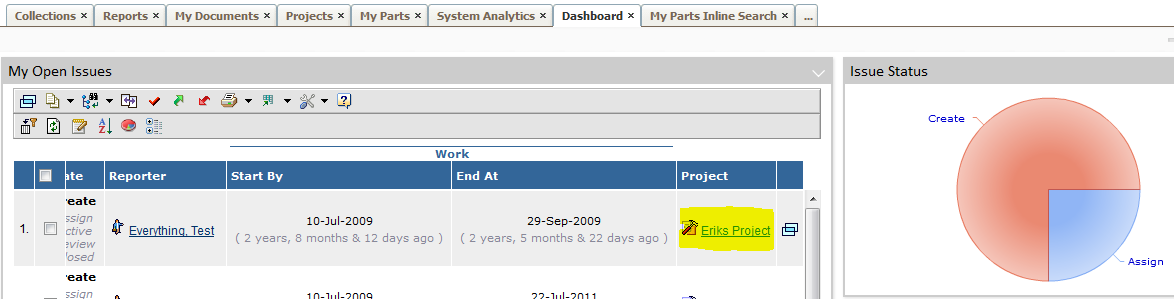
To configure a table-column to support drill down, you configure it as shown below:
<Column>
    <Name>project</Name>
    <Label>Project</Label>
    <Href>emxTree.jsp</Href>
    <TargetLocation>popup</TargetLocation>
    <Expression>from[Issue].to.name</Expression>
    <AlternateOIDExpression>from[Issue].to.id</AlternateOIDExpression>
    <AlternateTypeExpression>from[Issue].to.type</AlternateTypeExpression>
    <ShowAlternateIcon>true</ShowAlternateIcon>
    <ColumnType>dashboard</ColumnType>
    <Setting name='DashboardConfig'>tvc:dashboard:tvx:dashboard/Project.xml</Setting>
</Column>
As an alternative to specify the dashboard configuration to be used when clicking a value in this column as a setting, is to specify this on the page-config level using the syntax shown below:
<PageConfig>
    ...
    <Parameters>
        <Parameter name="dashboardconfig.project">tvc:dashboard:tvx:dashboard/Project.xml</Parameter>
    </Parameters>
</PageConfig>
E.g. using a parameter starting with "dashboardconfig." and ending with the column name.
This makes it possible to reuse the same table in different context’s, but just configure the dashboard config on the page-config level.