 TVC Helium 2025.4.0
<Setting name="options">{
	"filter": {
		"position": "belowColumnHeader",
		"useMultiValueFilter": true,
		"values": "Part, Mechanical part, Drawing Print"
	}
}</Setting>TVC Helium 2025.3.0 Release Information
01 August 2025
1. Table
1.1. Multi-Value column filter
Helium now supports multi-value dropdown filtering for string-based columns (that don’t use range values) in DataTables. Users can filter column data by selecting multiple values from a dropdown.
For client-side processing, the dropdown displays values dynamically based on the data present in the column.
For server-side processing, since full column data isn’t available on the client, a static list of comma-separated values must be defined. This list will be rendered as a dropdown, enabling users to filter data accurately for that column.
We have enhanced the filter positioning feature. Now, filters can be placed below the column header in the table.
The valid value for this position are "footer","belowColumnHeader","header".
This can be configured as below :
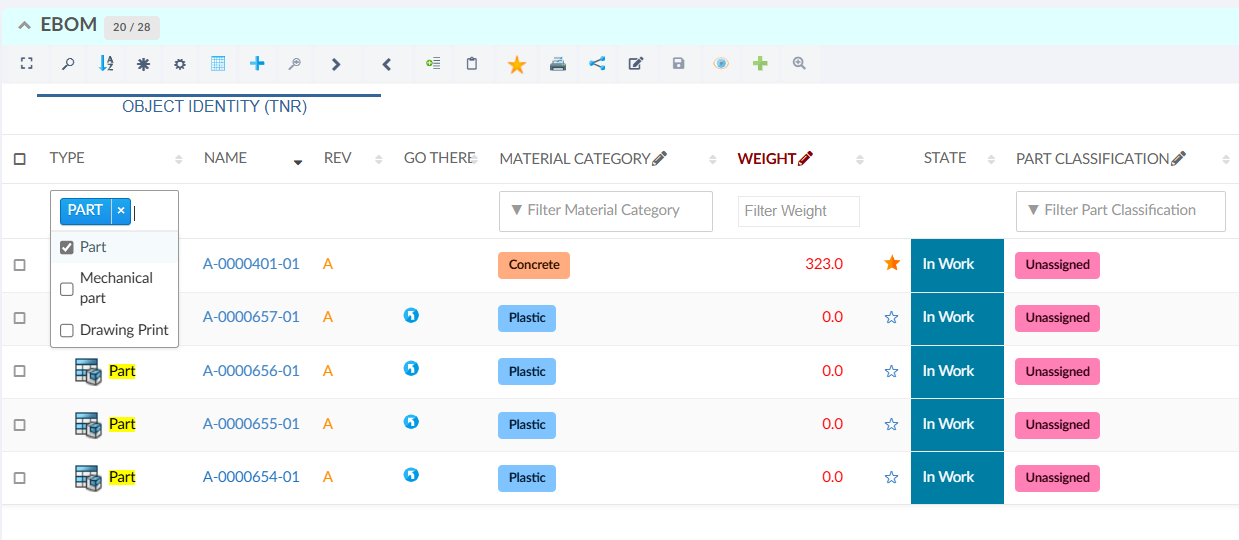
Figure 1. Multi-Value column filter
Additionally, we can define a callback that invokes a custom JavaScript function. This function can make an AJAX call and return a JavaScript object, whose values will be used to populate the dropdown dynamically for column-based filtering. This can be configured as below :
<Setting name="options">{
	"filter": {
		...
		"useMultiValueFilter": true,
		"values": "App.hex.setListUsingAsyncFunction"
	}
}</Setting>
Read more about Datatable-ColumnFilter for more details.
2. Dashboard
2.1. Dashboard level customization menu
Users can now customize the commands available in the dashboard menu. By default, menu customization is enabled globally across all dashboards with all available commands.
To control which dashboard menu commands are visible globally, configure the following global property: tvc.helium.dashboard.customization.dashboardMenus. This property accepts a comma-separated list of action names, allowing administrators to define a subset of dashboard menu commands to display.
Example: tvc.helium.dashboard.customization.dashboardMenus=reset-customization, reset-to-default, dashboard-views
Sometimes, It might be required where someone wants to enable or disable specific dashboard menu commands for a particular dashboard only. To handle such scenarios, we can use the <DashboardMenus> tag within the dashboard definition file.
Example: <DashboardMenus>reset-customization, reset-to-default, dashboard-views</DashboardMenus>
There are six available dashboard menu commands: reset-customization, reset-to-default, dashboard-views, add-or-create-widget, shared-dashboard, widget-gallery.

Figure 2. Dashboard Customization Menu
Read the Dashboard Customization Menu chapter for more details.
3. Search
3.1. Improved paginated search result
Helium now supports loading and interacting with search results in the structure view, enabling operations on both parent and child nodes.
Read the Search In Page chapter for more details.
3.2. Improved text field
The text field now automatically trims leading and trailing spaces from text pasted into the search form. This default behavior (set to true) helps users get more accurate search results by eliminating unwanted whitespace. If you need to disable this, simply set the trimSpacesOnPaste option to false.
Additionally, when copying data from Excel, pasted content may include newline characters. To address this, users can enable the replaceNewlinesWithCommasOnPaste setting by setting it to true. This will replace all newline characters in the pasted text with commas, ensuring accurate search results. The default value is false.
This settings can be configure as below:
<Field>
	.....
	.....
	<UIType>text</UIType>
	<Settings>
		<Setting name="trimSpacesOnPaste" value="false" />
		<Setting name="replaceNewlinesWithCommasOnPaste" value="true" />
	</Settings>
</Field>
Read the Search Form chapter for more details.
The same behavior can be enable on search bar too with setting tvc.helium.search.enableTrimOnCopyPaste
4. Form
4.1. Form configuration
A new setting <FromSearchTable>, used in the form to recognize that object creation is initiated from a search-based structure table for proper connect behavior. This setting should be set to true in such cases to ensure the newly created object is properly connected search-based structure table. The default value is false.
This setting can be configure in form:
<Form>
	<FromSearchTable>true</FromSearchTable>
</Form>
Read the Form chapter for more details.