 TVC Helium 2025.1.0
<Form>
	...
	<GlobalValidation>java:com.helium.form.validation.CreatePartValidation</GlobalValidation>
	...
</Form>TVC Helium 2025.1.0 Release Information
28 February 2025
Table of Contents
1. General
1.1. V6R2025x support
Value Components are qualified and compatible with the 3DEXPERIENCE 2025x Platform.
1.2. Prevention of unsafe tags
Helium now offers enhanced protection against XSS vulnerabilities by automatically sanitizing data whenever potentially harmful content is detected. The global property tvc.helium.core.preserveOutput controls this sanitization process. When set to true, it preserves the original data without applying sanitization. If set to false, it enables sanitization, filtering out potentially dangerous content, such as <script> tags, to mitigate security risks. By default, this property is set to false.
By default, Helium blocks known XSS-vulnerable tags. However list of disallowed HTML tags can be configured using global property, tvc.helium.disallowXSSElements. This enabling the restriction of newly identified XSS-vulnerable elements at a global level.
|
Be careful while seting this property as only listed tags will be blocked and rest will be allowed. |
Read more about Prevention Of Unsafe Tags for more details.
2. Form
2.1. Global validation
From this release, we have introduced java based validation for checking complex business rules.
The <GlobalValidation> element introduces a mechanism to validate form data before submission.
To perform validation, specify a Java class that implements com.technia.helium.form.user.GlobalValidation.
This Java class is responsible for validating the form’s field data before submission.
- Reusing Existing TVC Classic Global Validation
-
When migrating from TVC Classic forms to Helium forms, you don’t need to rewrite the validation program in Helium. Instead, you can reuse an existing TVC Classic global validation program by setting the
useLegacyattribute totrueat helium form side.
Example: Reusing TVC Classic Validation at Helium Side
<Form>
	...
	<GlobalValidation useLegacy="true">
		java:com.technia.tvx.enc.form.validation.TVCPartEditValidation
	</GlobalValidation>
	...
</Form>
By setting useLegacy="true", the existing TVC Classic validation program will be used to validate
the Helium form. This ensures a smooth transition from TVC Classic forms to Helium forms without
requiring modifications to the existing validation logic.
3. Table
3.1. Classififcation Column
While working with classification columns, there might be cases where some initial levels are identical, and thus, do not provide specific or useful information. The hideLevel option allows you to hide these redundant levels from the classification view, ensuring a more concise and relevant display of information.
In below example, redundant information CAR→Braking system is hidden by using hideLevel:2 setting.
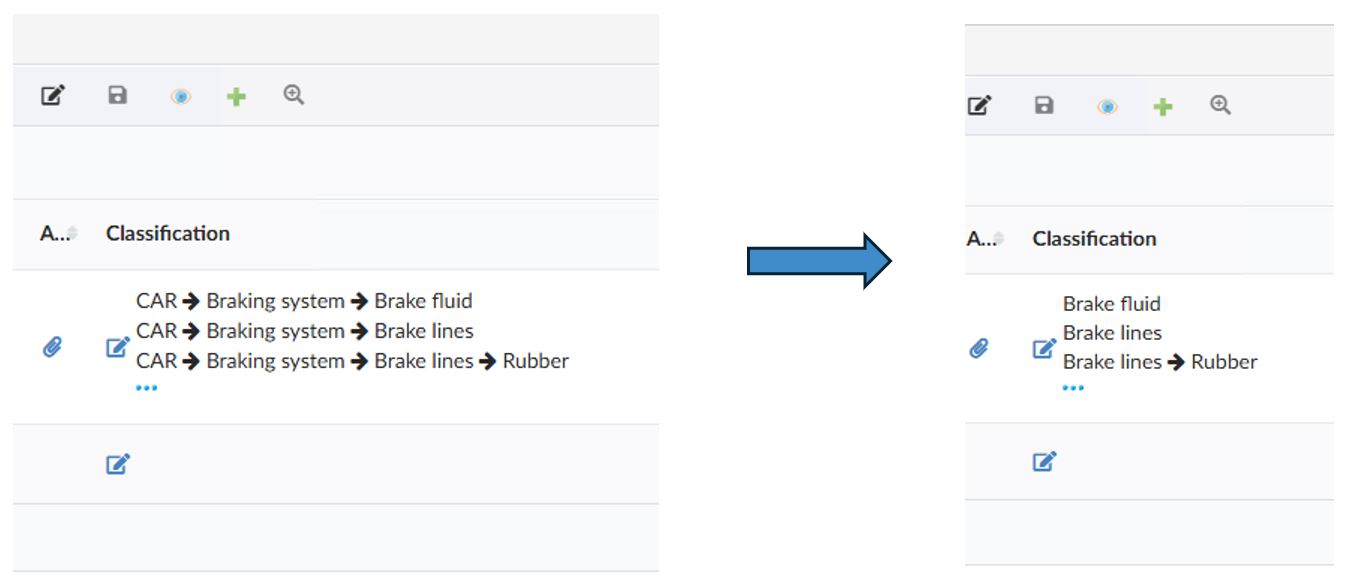
Figure 1. Classification Column
For column, it can be configured as below:
<Column>
    <Label>Classification</Label>
    <Name>Classification</Name>
    <ColumnType>helium-classification</ColumnType>
    <Setting name="options">{
        "hideLevel":2,
        "hideAddClassificationIcon": false,
        ...
    }</Setting>
</Column>
Read more about Classification Column for more details.
Same feature can be configured for field as below:
<ClassificationField id="classificationField">
    <Label>ClassificationField</Label>
    <LibraryLoader>
        <DataSet namespace="helium">ClassificationLibrary.xml</DataSet>
    </LibraryLoader>
    ...
    <DisplayExpression>name</DisplayExpression>
    <Options>
        <![CDATA[{
        "hideLevel":2,
        "editClassification": {
                    ...
            }
        }]]>
    </Options>
</ClassificationField>
Read more about Classification Field for more details.
4. Search
4.1. Integration with Federated Search
In 3DEXPERIENCE, Exalead CloudView search is accessed via Federated Search. 3DSpace and 3DDashboard use its API to retrieve results as static HTML, without table-level actions. The helium based search will use the Federated Search client API to fetch results with 6W tags , which are added to the search form for filtering.
Read more about Federated Search for more details.
4.1.1. Search Side Panel
Search side panel can be used to perform search configured within a page. Similar to quick search, search side panel allows users a way to easily find objects of interest related to context objects and load search result into page dashboard. When configured search side panel opens on left side with a search form.
The search panel now supports federated search when the externalSearchURL setting is enabled. This allows users to search across multiple data sources, including external systems.
From this release, search can be integrated with federated data source by using setting <Setting name="externalSearchURL" value="true" /> in the search panel config.
Read more about Search Side Panel for more details
4.1.2. Section And SectionUIs
The Federated Search supports two result formats: tile and table. The default presentation is tile-based. However, if the UI configuration specifies a table type, the system will prioritize this setting and render results in a tabular format. This requires defining the appropriate section in the UI configuration.
<Search>
    ...
    <UIs>
        <UI id="id1">
            <Type>table</Type>
            <Table>
                <Column>
                    <DataField>ds6w:type</DataField>
                    <Label>Type</Label>
                </Column>
                <Column>
                    <DataField>ds6w:identifier</DataField>
                    <Label>Name</Label>
                </Column>
                <Column>
                    <DataField>ds6wg:revision</DataField>
                    <Label>Revision</Label>
                </Column>
                <Column>
                    <DataField>ds6w:responsible</DataField>
                    <Label>Owner</Label>
                </Column>
                <Column>
                    <DataField>ds6w:status</DataField>
                    <Label>State</Label>
                </Column>
                <Column>
                    <DataField>ds6wg:Weight</DataField>
                    <Label>com.technia.tvc.search.form.dimension.kg</Label>
                </Column>
                <Column>
                    <DataField>ds6w:unit</DataField>
                    <Label>Unit Of Measure</Label>
                </Column>
                <Column>
                    <DataField>ds6wg:Material</DataField>
                    <Label>Material Category</Label>
                </Column>
            </Table>
        </UI>
    </UIs>
    ...
</Search>
To enhance the organization and readability of search results, search configured with federated is now supporting sections. These sections can be configured in the Search settings like below.
<Search>
    ...
    <Sections>
        <Section>
            <Filter>
                <DataField>ds6wg:material</DataField>
                <Value>Plastic</Value>
            </Filter>
            <Label>Plastic</Label>
        </Section>
		<Section>
            <Filter>
                <DataField>ds6wg:material</DataField>
                <Value>Metal</Value>
            </Filter>
            <Label>Metal</Label>
        </Section>
        <Section>
            <Filter>
                <DataField>ds6wg:material</DataField>
                <Value>Rubber</Value>
            </Filter>
            <Label>Rubber</Label>
        </Section>
    </Sections>
    ...
</Search>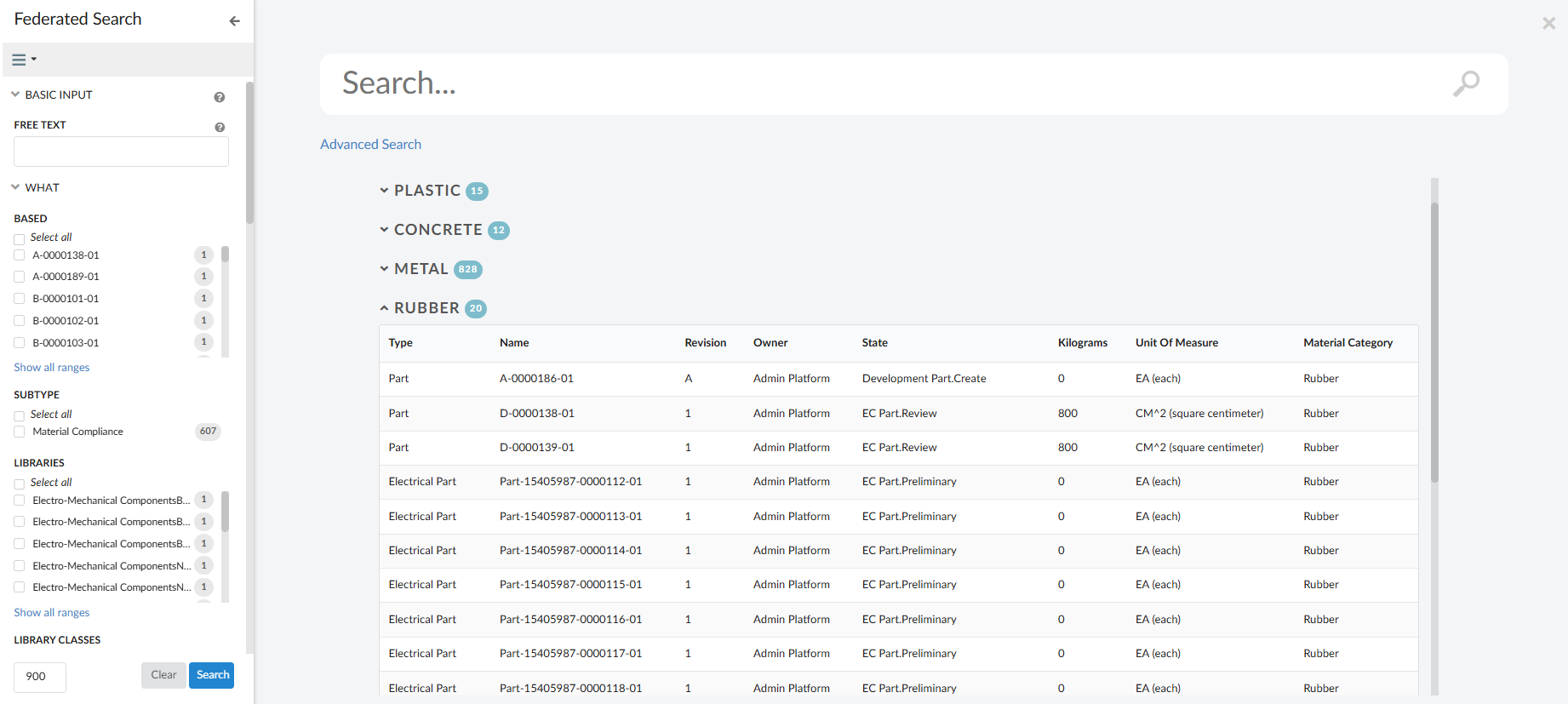
Figure 2. Federated Search Tabular View
Read more about Federated Search for more details.
DataField defined, whether in Section or a Column has to be mapped 6W tag to corresponding field defined in searchindex file.
|
5. 3DDashboard
5.1. Advanced Filters
In 3DEXPERIENCE, users can create and apply Advanced Filters to a root object based on:
-
Attribute values of child objects within the structure.
-
Product evolutions and variants associated with the model in the root object’s configuration context.
These filters provide precise control over data visibility and selection, improving usability and efficiency. Helium widgets leverage this capability to further enhance user experience and enterprise productivity, for example working with 150% BOMs.
5.1.1. Setting up support for Advanced Filters
-
Add a Filter Expander in the desired TableConfig. Example -
<FilterExpander>invoke:tvc:service:helium/ProgressiveExpandV2.xml</FilterExpander> -
We can also specify URL for getting filter query under
tvc.helium.filterQueryURLproperty intvc.properties. Default value is set totvc.helium.filterQueryURL=resources/FilterBIAPI/Filter/getFilterQuery.
5.1.2. Steps to apply Advanced Filters
To access Advanced Filters associated to a root object. Right click on the object row, that would open the right-click-menu, which will have the command to view Advanced Filters associated to that specific object.
Once the Filters are populated on the sidepanel, user can either drag and drop these filters to other widgets or else click on it to open the filtered objects.
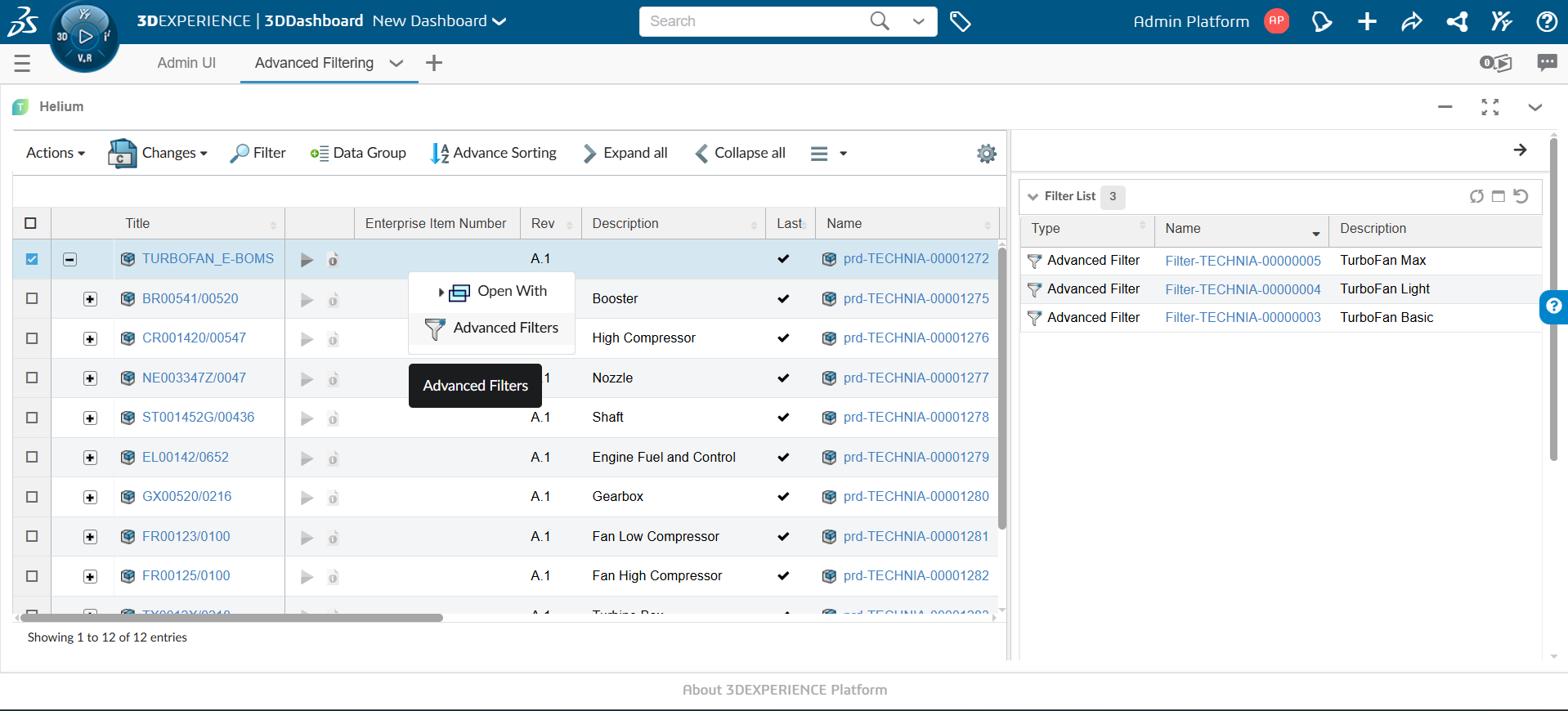
Figure 3. List of Advanced Filters associated to root object.
Users can use the "Go Back" command to go back to the original context and this would remove the applied filter as well.
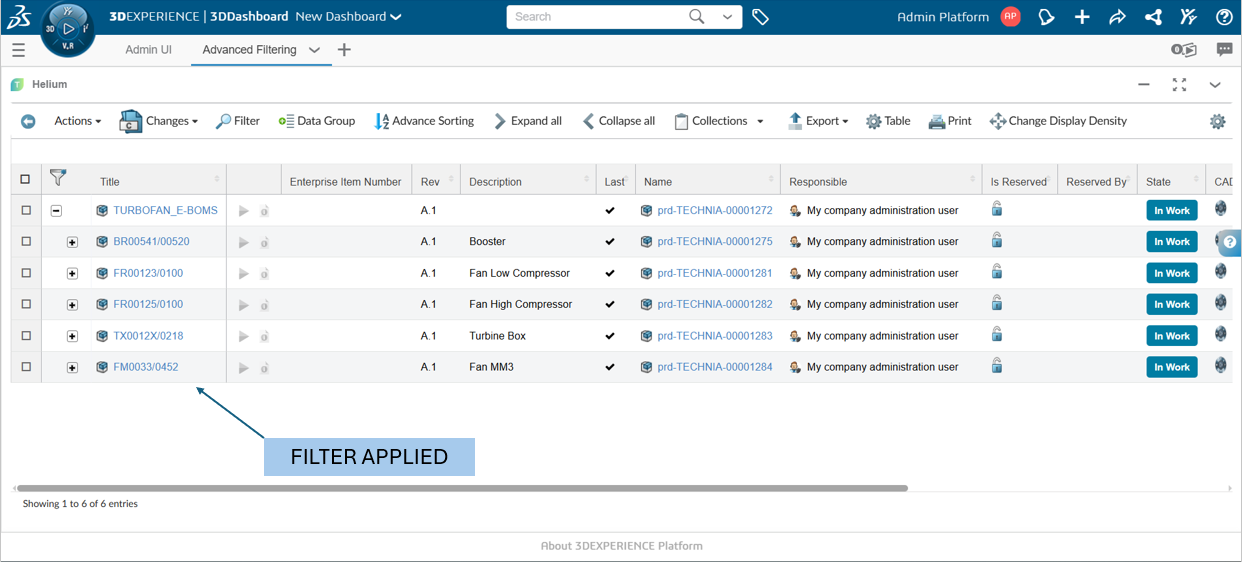
Figure 4. Filtered View
6. Service Toolbar
6.1. Service Command
It is possible to call OOTB service and include service response in the Form for further processing. Also, it allows to open a form and prepare OOTB service body with the user input. First, form can be invoked to take user input and on submit it will process the OOTB service
In some cases, more than one services may need to be called before opening the form. This can be achieved using a custom function. With this update, Helium now supports custom function, offering greater flexibility. One can use either the URL of the initial service or a custom function to call external services, which can return data as an object. The example below illustrates how to use custom function as URL.
<ServiceCommand>
	<Label>External Service</Label>
	<Setting name="OnClick" value="App.dataTable.invokeServiceCall" />
	<Setting name="OnClickParams">{
		"url":"App.hex.fetchExternlData",
		 ...
	}</Setting>
	...
</ServiceCommand>
Read more about Input Based Service Command for more details.
7. Lifecycle
7.1. Signature
Previously, Helium only supported displaying the lifecycle of an object. With this release, Helium now also supports signatures. If a promotion or demotion in the lifecycle fails due to signature requirements for a specific state, it can be managed through the signature widget. Users can configure the signature widget to view and sign signatures, add comments while signing, and, once signed, easily promote or demote based on signature rules.
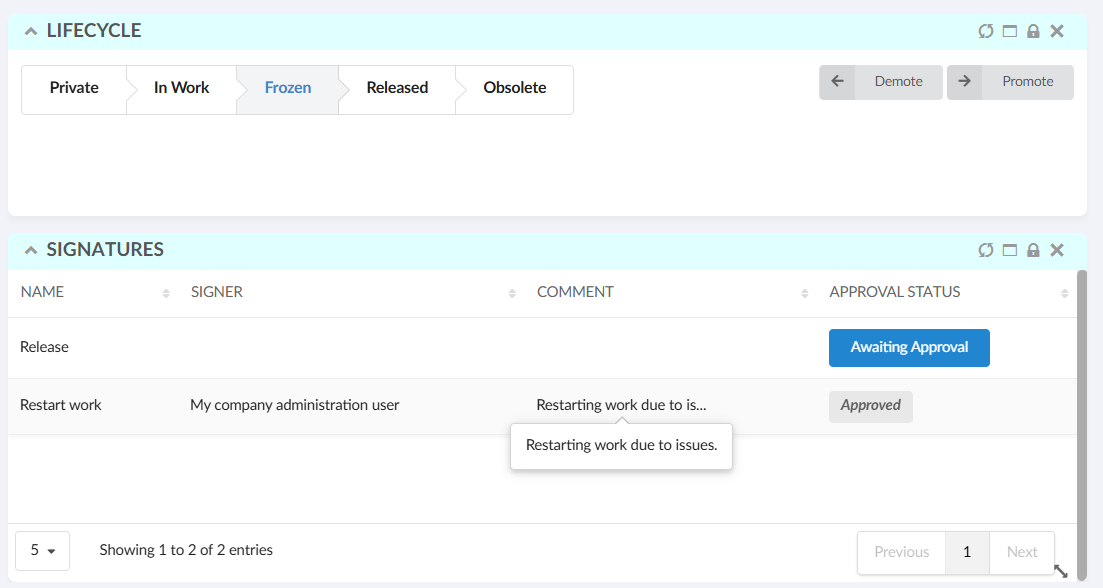
Figure 5. Signature View
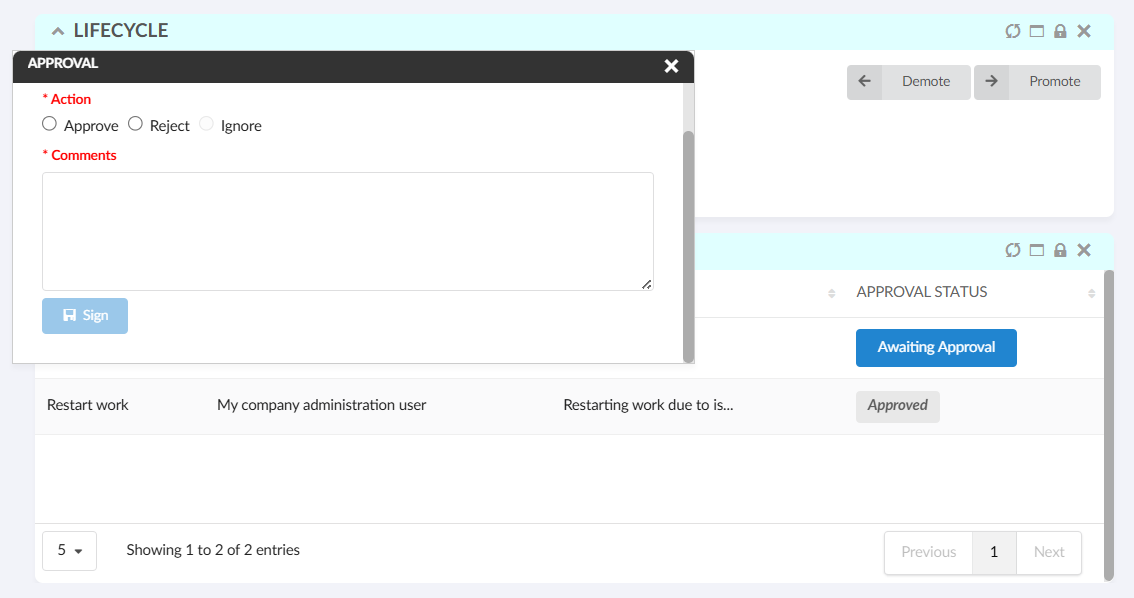
Figure 6. Signature Approval
Read more about Signature Widget configuration.
8. Topbar
8.1. Dynamic Breadcrumb Display with Configurable Large Home Icon
The breadcrumb bar is always displayed, even when no navigation has occurred, which takes up extra space at the top of the page. To enhance the user experience, the breadcrumb will now be hidden when only the home icon is present and will become visible once navigation starts. If the user returns to the home page, the breadcrumb will be concealed again.
Additionally, a new system property, tvc.helium.breadcrumb.useLargeHomeIcon, has been introduced to enable a large home icon in the breadcrumb. This property needs to be set to true to activate the large icon, with the default value being false.
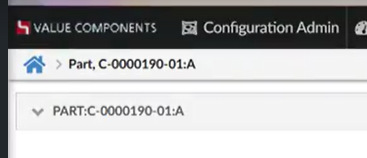
Figure 7. Large Home Icon